
How to record a video with a virtual background on Mac
Record yourself with a different background — live, not fixed in post. What you need, how to set it up, and how to get clean edges.
There are two ways to get a different background into your videos: replace it in post after recording, or replace it live while you record. Recording live is faster and safer — you see the final result as you film, so framing mistakes (a hand drifting out of the mask, sitting too close to the edge) are caught immediately instead of discovered in the edit.
What you need
- A Mac running macOS 15.4 or later
- Any camera your Mac can see — the built-in one, an iPhone via Continuity Camera, or a USB webcam
- Background Eraser (free on the Mac App Store)
No green screen, no lighting kit, no capture card.
Step by step
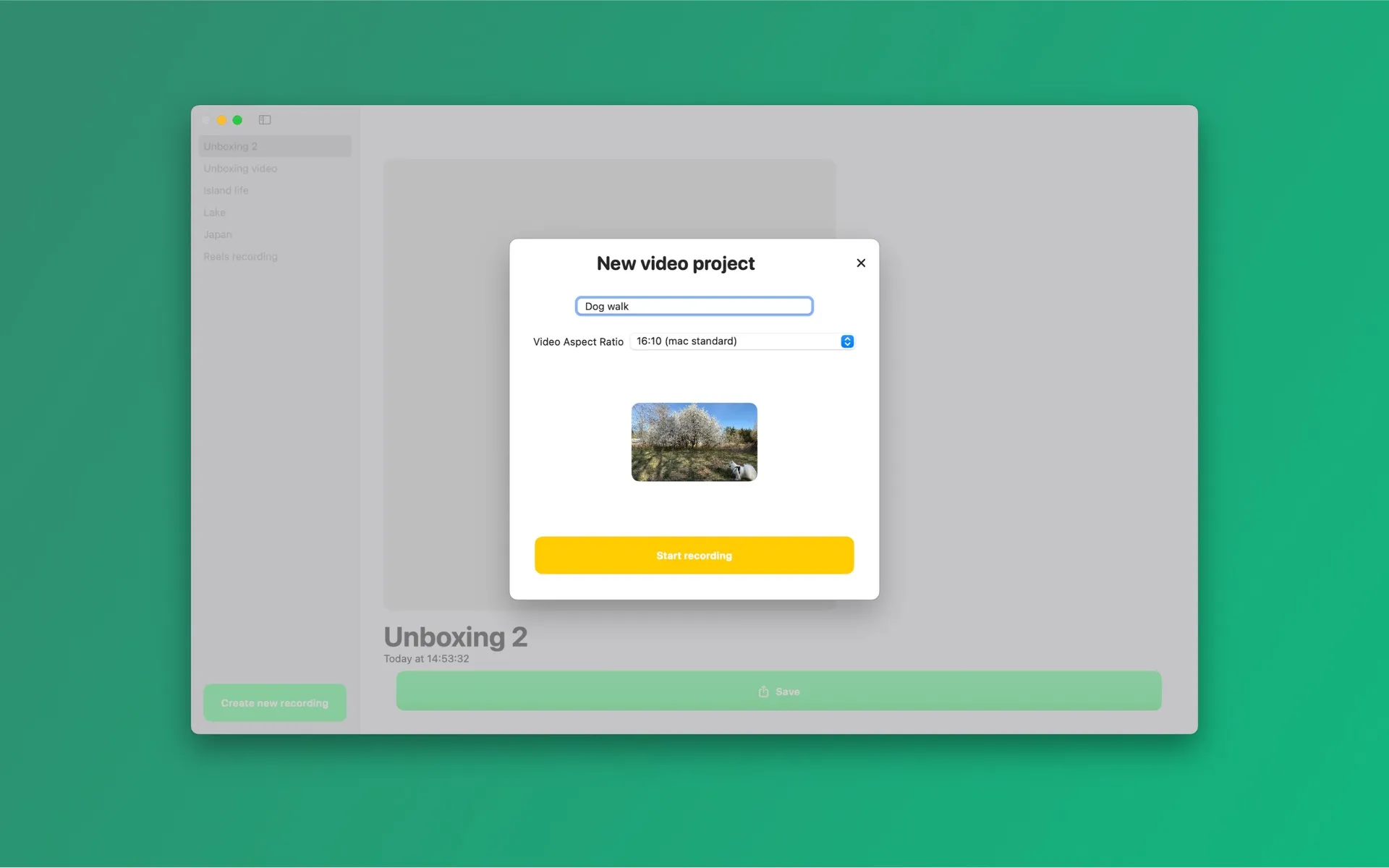
- Pick your background first. Open Background Eraser, create a new video project and choose what goes behind you: a brand color, one of 8 studio presets, an image of a real set, a looping background video, or a simple blur. Looping video backgrounds are an underrated choice — the subtle motion reads as “produced,” not “pasted.”
-
Frame yourself with the live preview. The app shows you already composited onto the new background. Sit where the edges look clean. If your hair or shoulders shimmer, switch the AI quality to Accurate.
-
Record. What you saw is what you get — there’s no separate keying step.
-
Polish. Nudge the edge refinement sliders (feather for softness, tightness to remove halo), then position yourself on the canvas: scale up for a tight talking-head crop, or shift to a corner to leave room for screen content.
-
Export. One-tap canvas presets reframe the same recording for 9:16 Shorts, 1:1 feeds or 16:9 YouTube, exported as MP4 up to 1080p.
Three habits that make virtual backgrounds look professional
Light yourself from the front. Segmentation quality tracks lighting quality. A window or lamp in front of you (never behind) is the single biggest upgrade.
Match the background to your light. If your face is lit warm, a cool blue background looks composited. The studio presets are tuned to be forgiving here.
Add depth cues. A slight blur or a drop shadow under your cutout tricks the eye into reading one coherent scene instead of a sticker on a slide. Background Eraser has both built in.
Why not just use Zoom or OBS?
Zoom’s virtual background only exists inside Zoom calls and its recordings are compressed for meetings, not publishing. OBS can do it with plugins, but it’s a broadcast studio — scenes, sources and settings — when all you want is a clean recorded file. A dedicated recorder gets you from “open app” to “exported MP4” in one sitting.